How to install CI HUB Drive for Mac

Follow this step-by-step guide to complete your installation. You can click on the pictures to view enlarged versions of each image!
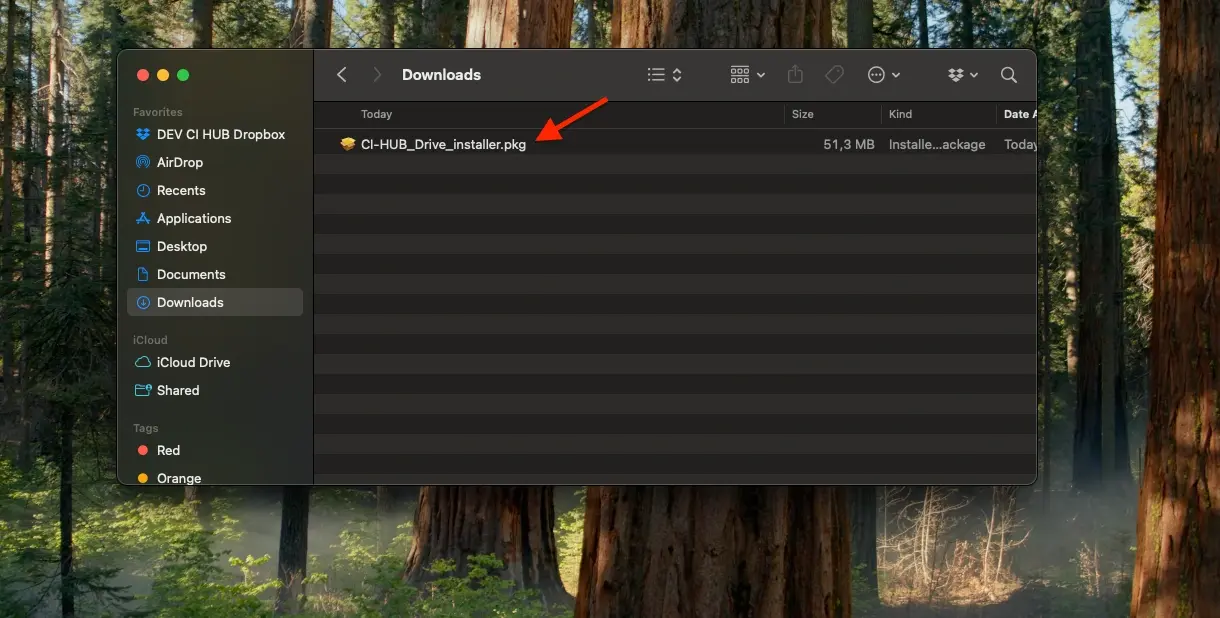
ci-hub-drive-install-step1
Step 1

To install CI HUB Drive, click on the highlighted link and download the CI HUB Drive installer.

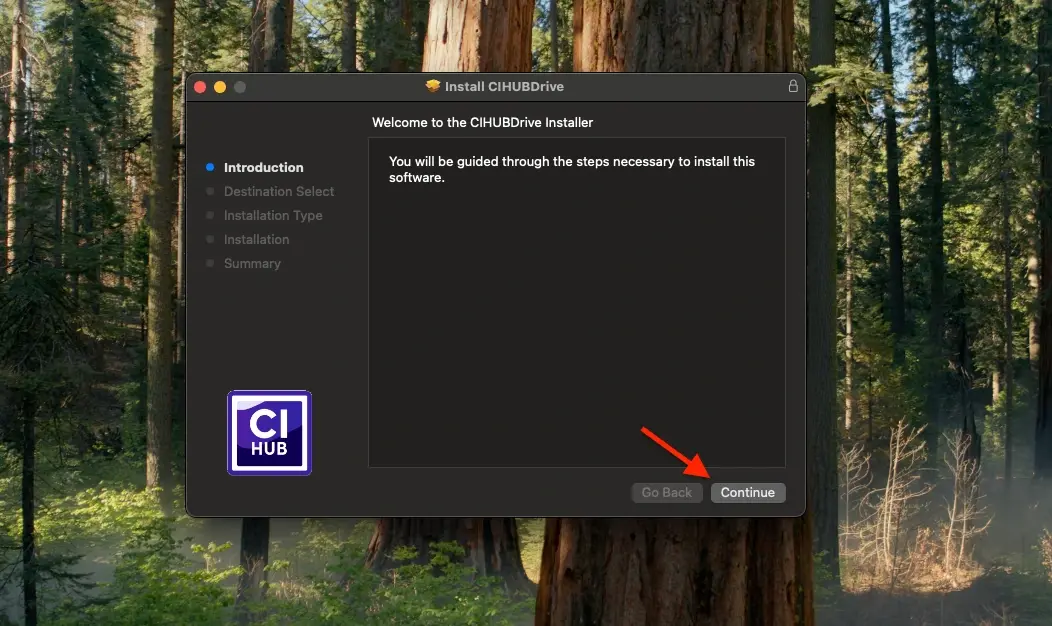
ci-hub-drive-install-step2
Step 2

Open the Installer and follow the on-screen instructions,

ci-hub-drive-step3
Step 3

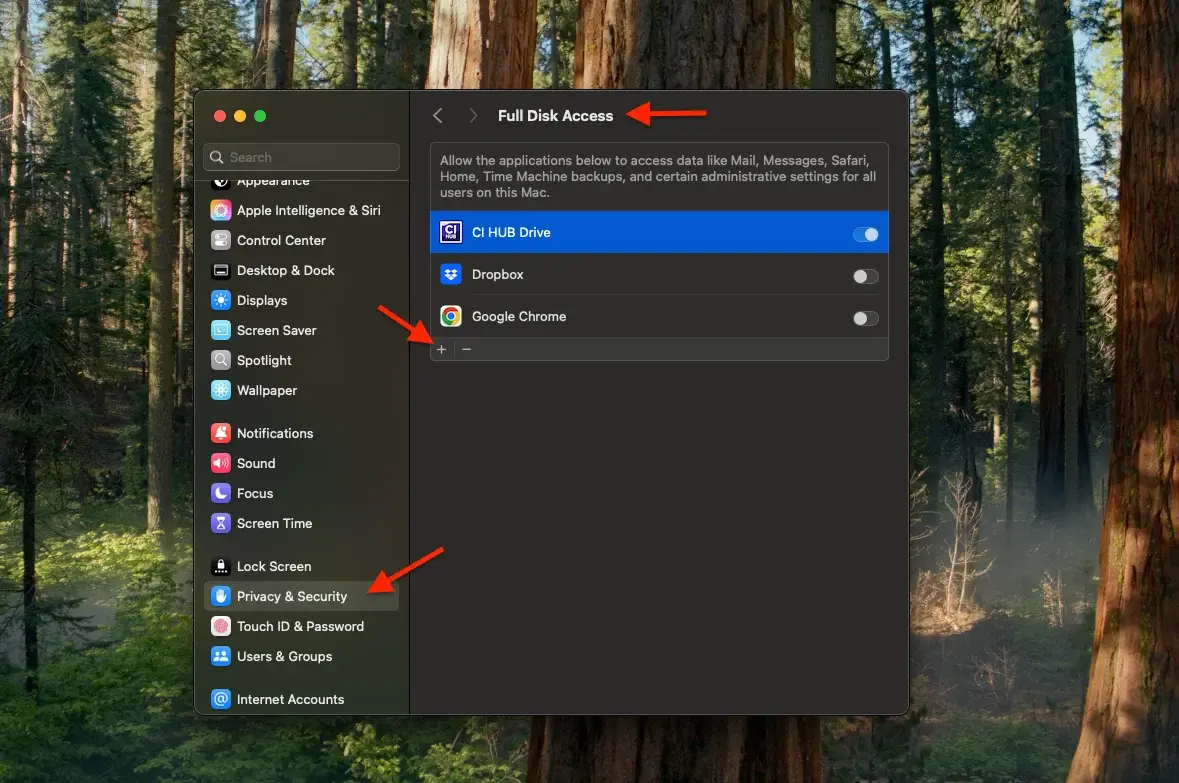
Open the Mac System Settings, go to Privacy and Security, scroll down until you find 'Full Disk Access' and add CI HUB Drive. If CI HUB Drive is not visible, you need to click on the "plus icon" and search for CI HUB Drive in the application folder.

drive-installer-step4
Step 4

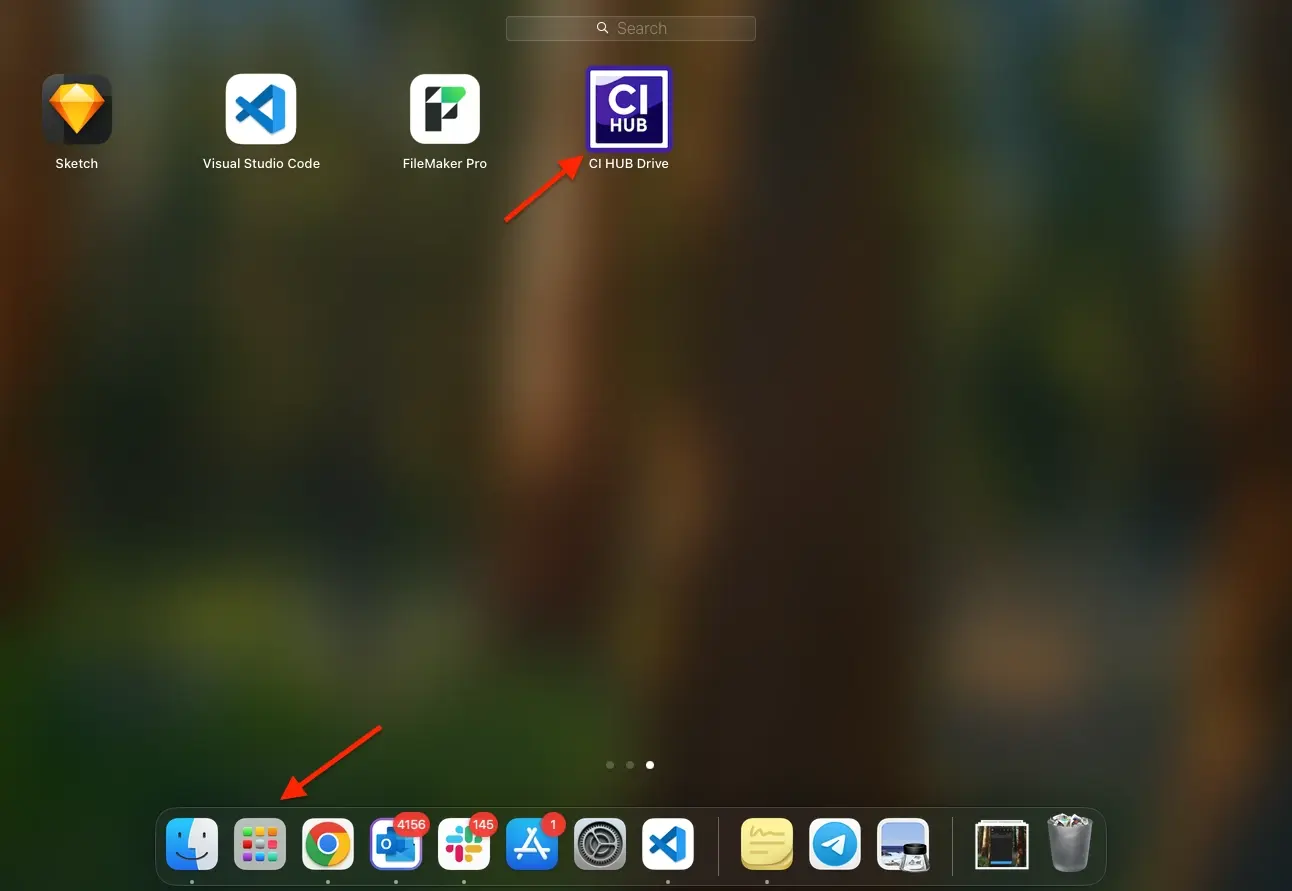
Open CI HUB Drive from your applications folder or launchpad. CI HUB Drive will appear on your menu bar.

drive-installer-step5
Step 5

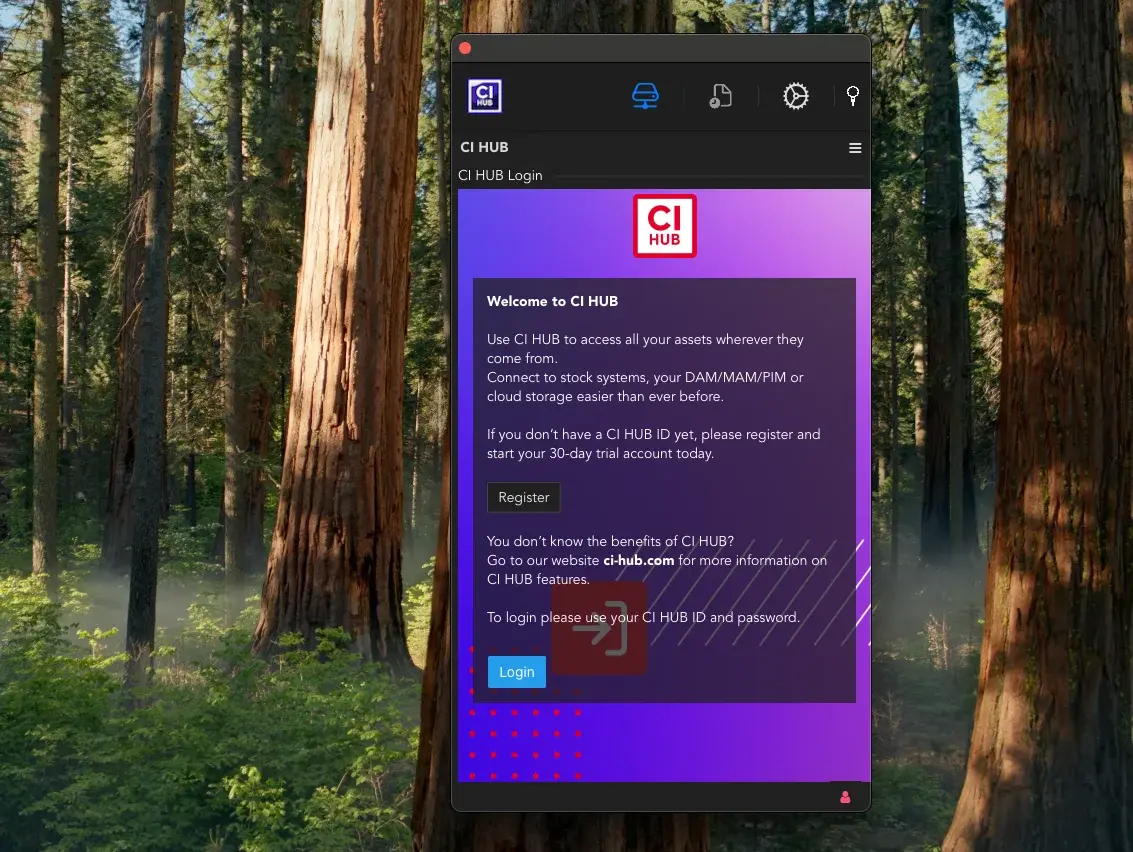
Click Login once the CI HUB pop up appears and enter in your CI HUB credentials to enable the connector.

drive-installer-step6
Step 6
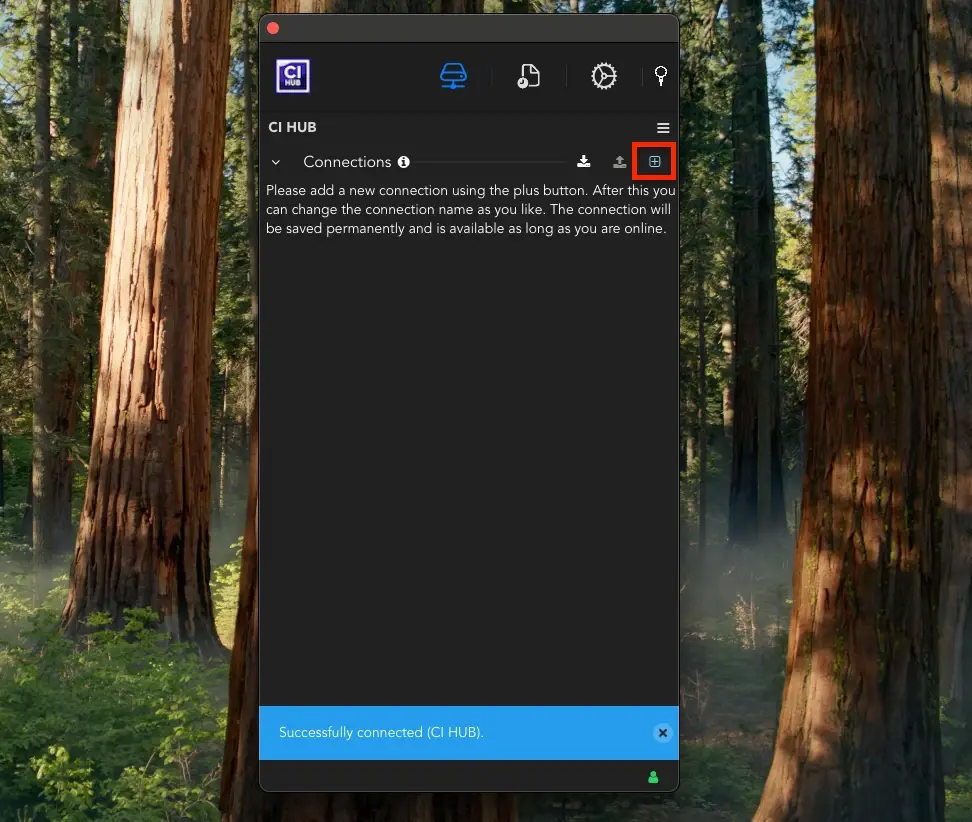
Once the CI HUB Connector is enabled, click the + symbol next to connections. Search your connection and click on the + button to add the connection. 
ci-hub-get-started-connector-professional-adobe-step6
Step 7
Once authenticated, you'll receive a pop up notification letting you know that CI HUB has been successfully connected to any connection.
× Full view

How to Get Started

Installing and running CI HUB Drive is quick and easy. Follow this tutorial video to begin, and start having fun!

Do you have questions?
We have the answers

You can install CI HUB Drive by downloading the macOS installer and following the setup instructions. Once the installation is complete, CI HUB Drive will be available through your Mac environment.

Before installation, you should be using a supported macOS version and have valid CI HUB credentials. You will also need access to a supported DAM system to connect your assets.

After launching CI HUB Drive, sign in with your CI HUB credentials and add your DAM connection. Once authenticated, your asset repository becomes available through the drive interface.

CI HUB Drive virtually mounts your DAM within the MacOS Finder, allowing you to browse and access assets as if they were stored locally. This helps users work with files directly from the desktop environment without switching applications.

Yes. CI HUB Drive mirrors the permissions defined in your DAM system. Users only see and access the assets they are authorized to use, helping maintain governance and security across teams.