How to install CI HUB Connector Professional in
Microsoft PowerPoint
Follow this step-by-step guide to complete your installation.
Looking for the installation guide for the CI HUB Connector Pro for Microsoft PowerPoint (Windows only)?
Click here to view the Pro version instructions.
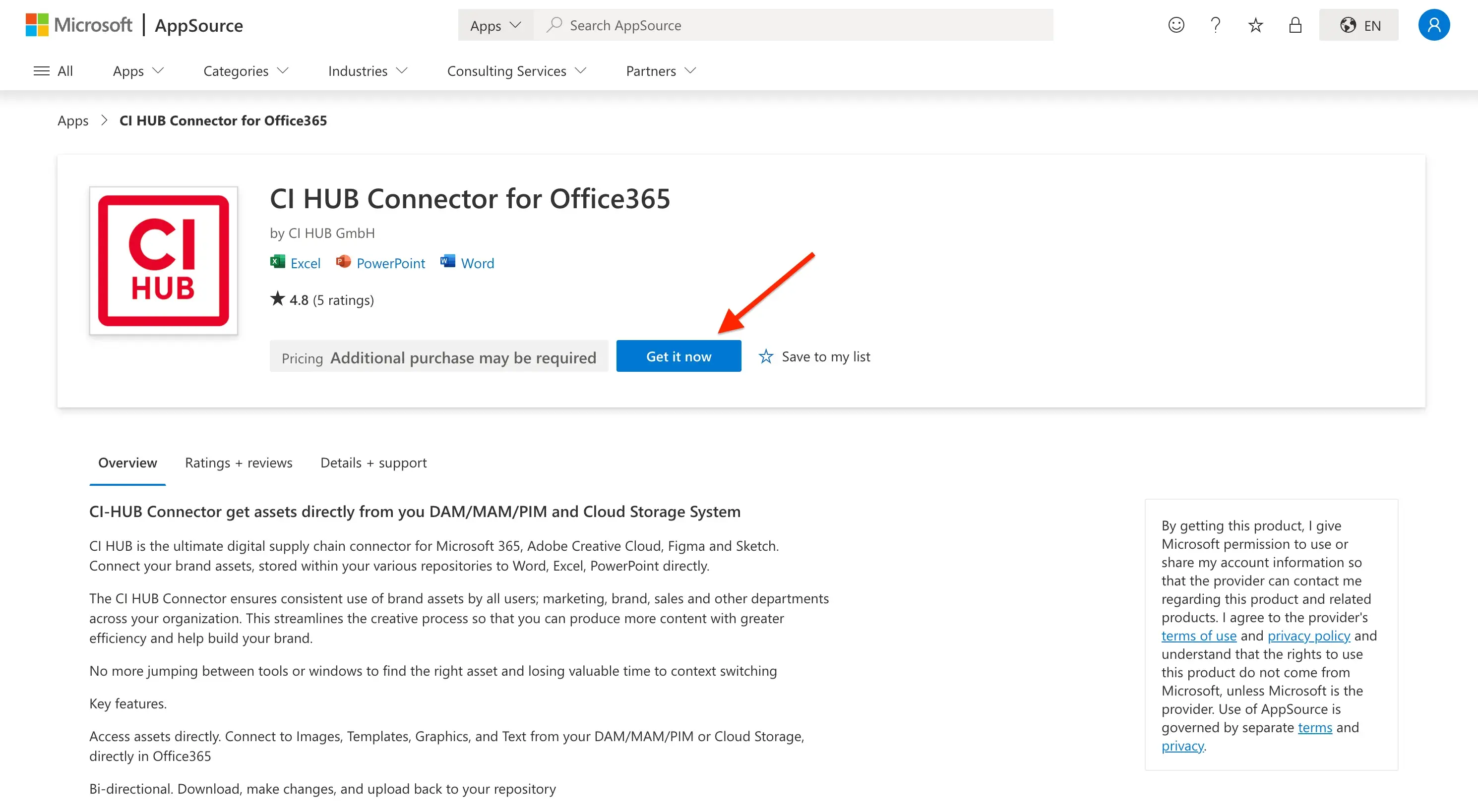
Step 1
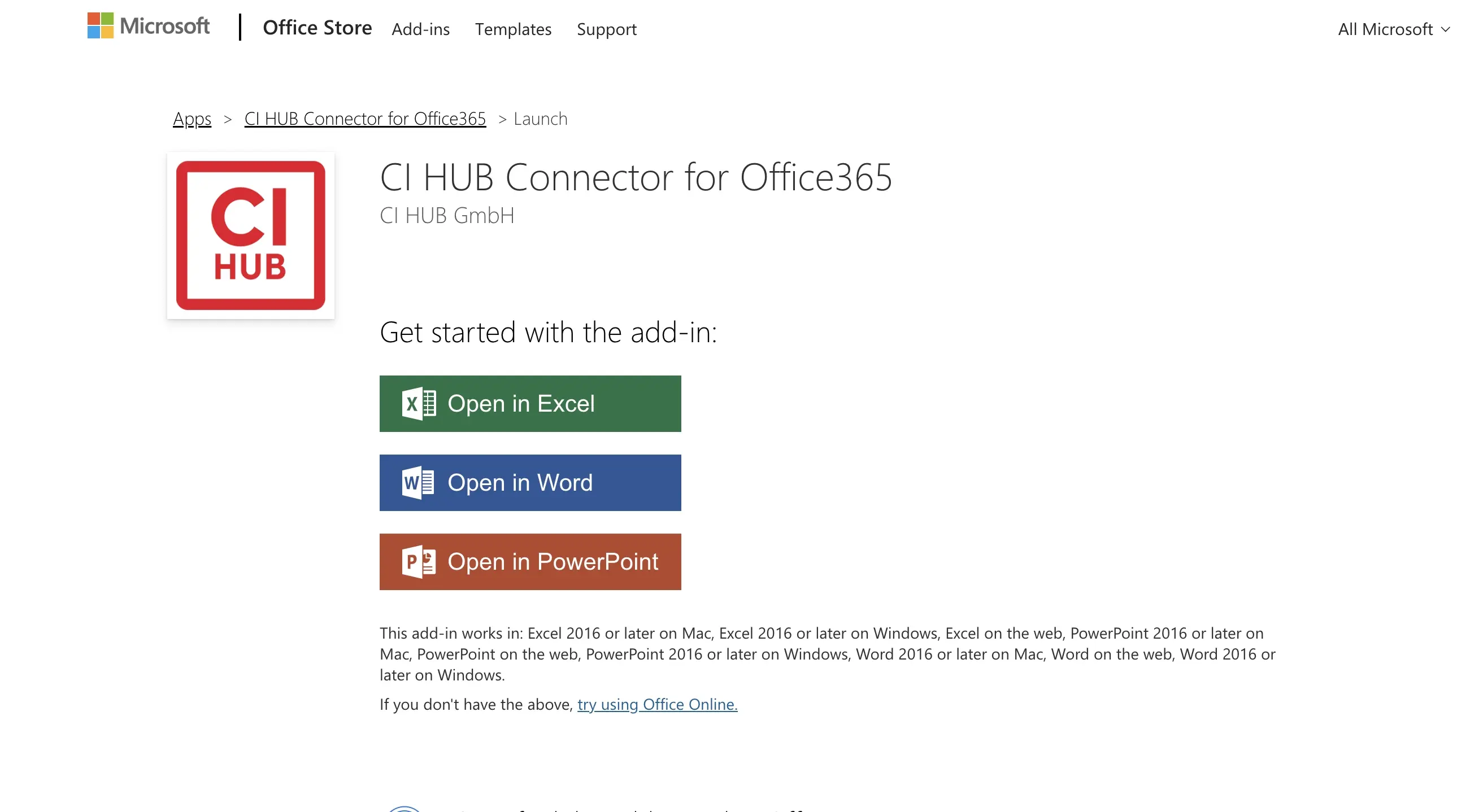
Open the Microsoft AppSource, and to start the installation process click on "Get it now".
Step 2
To install the CI HUB Connector, select the "Open in PowerPoint" option.
Step 3
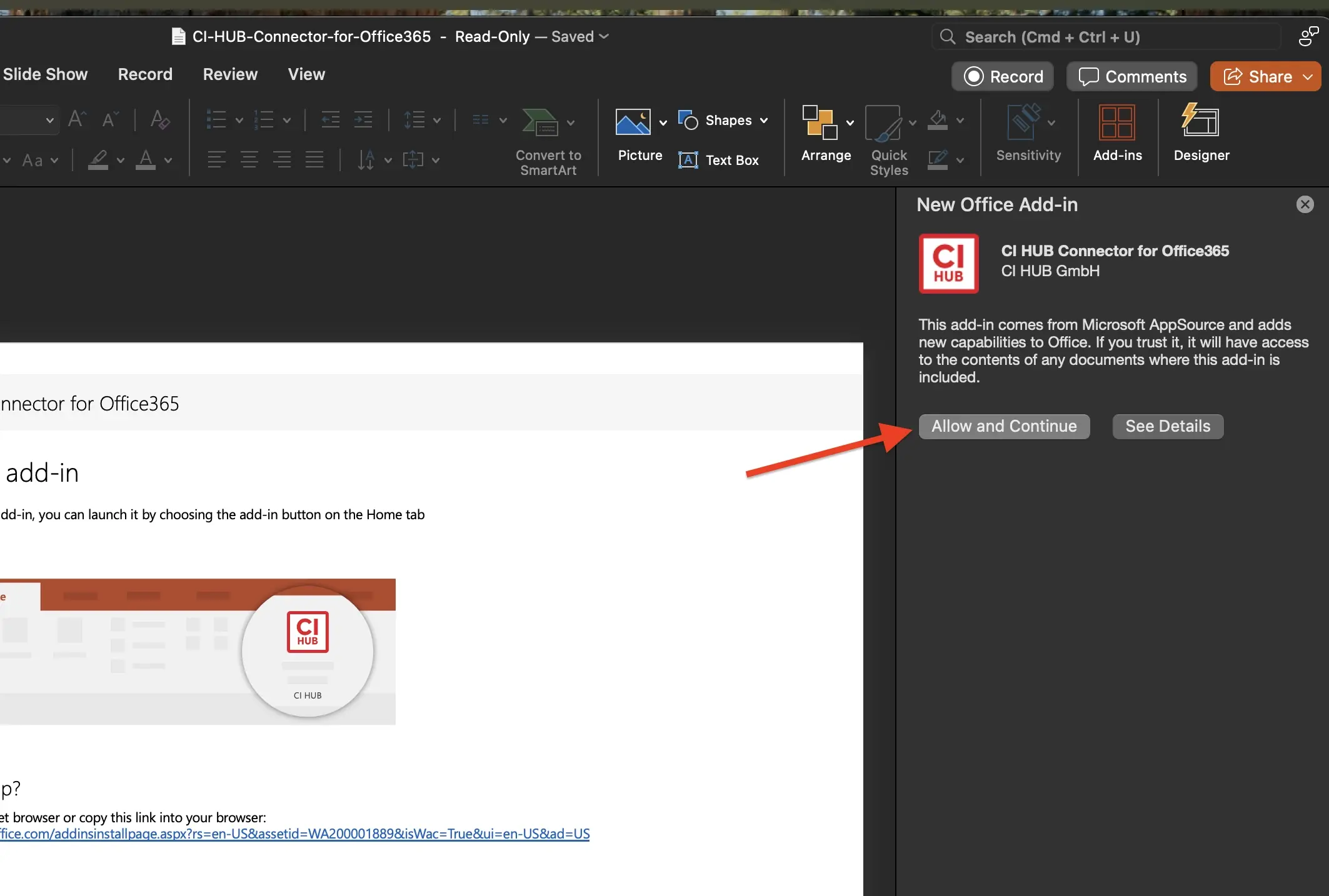
Open PowerPoint and continue the installation guide by clicking on Allow and Continue.
Step 4
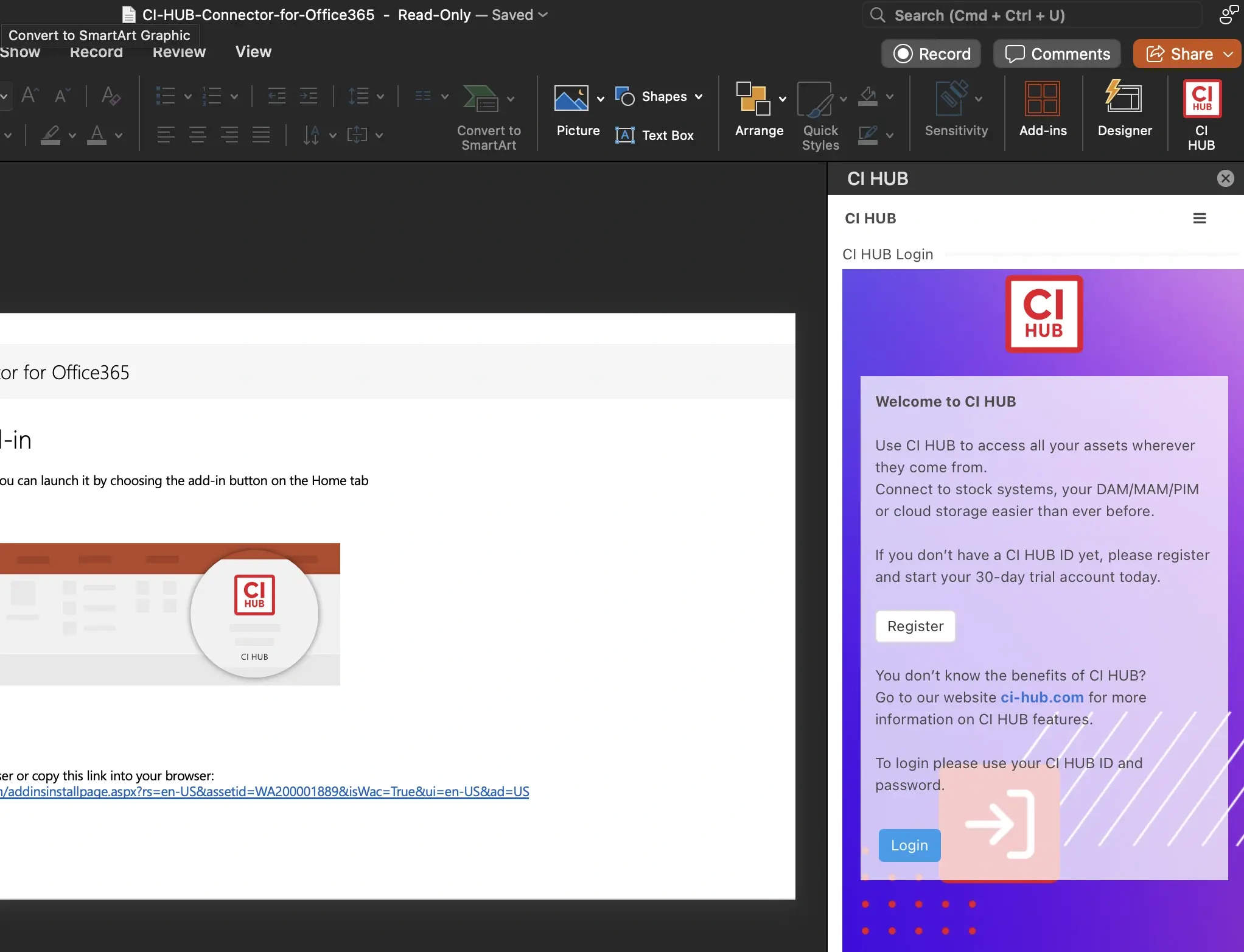
Click Login once the CI HUB pop up appears and enter in
your CI HUB credentials to enable the connector.
Step 5
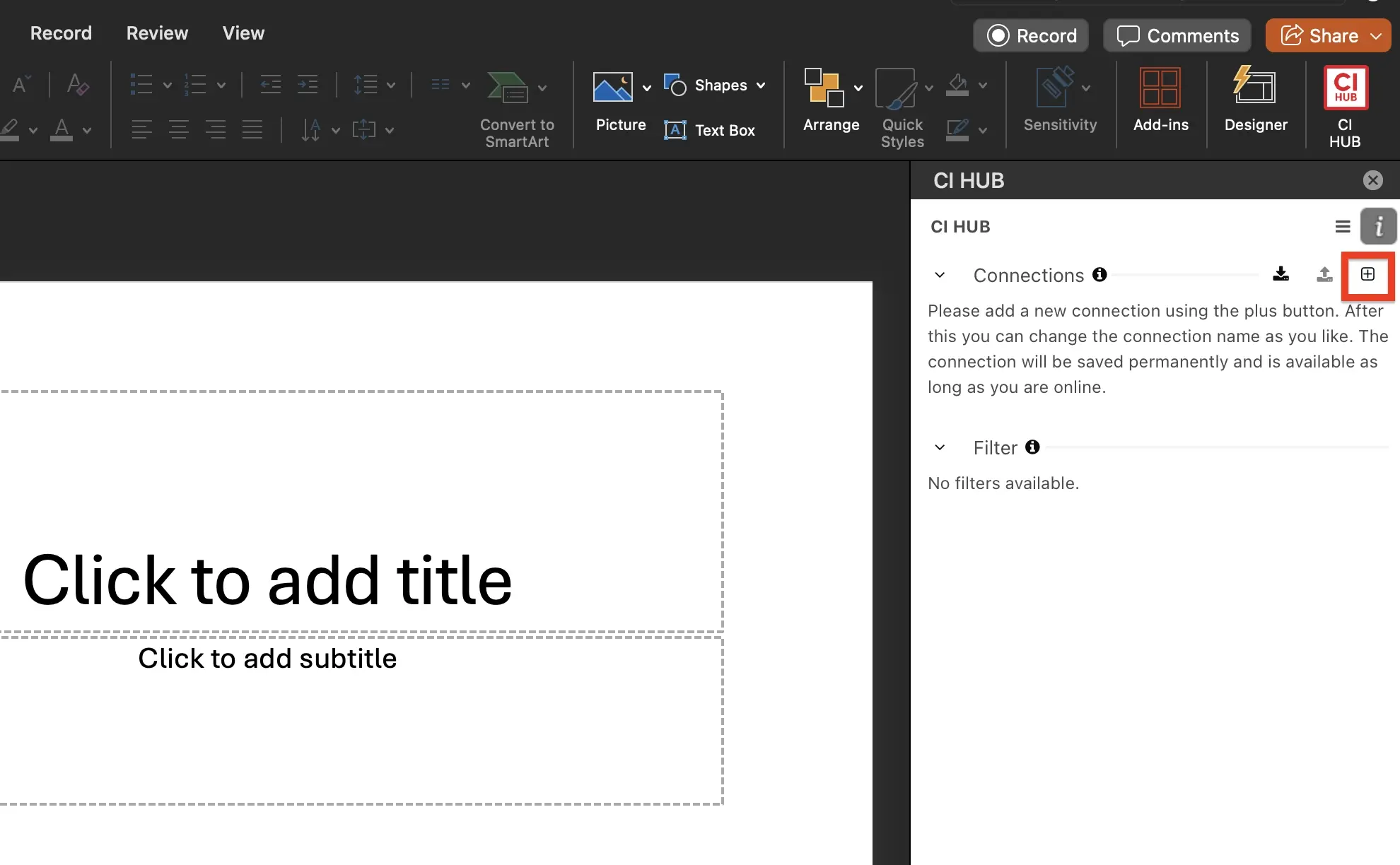
Once the CI HUB Connector is enabled, click the + symbol
next to connections. Search your connection and click on
the + button to add the connection.
next to connections. Search your connection and click on
the + button to add the connection.
Step 6
Once authenticated, you'll receive a pop up notification
letting you know that CI HUB has been successfully
connected to any connection.
letting you know that CI HUB has been successfully
connected to any connection.
×
Lorem ipsum
Video Introduction Headline
Lorem ipsum dolor sit amet, consectetur adipiscing elit, sed do eiusmod tempor incididunt ut labore et dolore magna aliqua. Ut enim ad minim veniam, quis nostrud exercitation ullamco laboris nisi ut aliquip ex ea.
FAQs
Do you have questions?
We have the answers
You can install CI HUB Connector Professional through Microsoft AppSource. Once the installation is complete, the connector becomes available within Microsoft PowerPoint and can be activated using your CI HUB credentials.
Before installation, you should have a Microsoft PowerPoint account, valid CI HUB login credentials, and access to a supported DAM system. This allows you to connect and start accessing assets after setup.
After opening the CI HUB panel, sign in with your CI HUB credentials. You can then add your DAM connection, authenticate it, and begin accessing approved assets directly from PowerPoint.
Yes. Once connected, you can search for assets stored in your DAM and use them while creating presentations. This helps ensure presentations use approved and up-to-date content.
CI HUB allows users to access DAM assets without leaving PowerPoint. This reduces manual downloading and platform switching, helping teams create presentations more efficiently.