How to install CI HUB Connector Professional in
Adobe InDesign
Follow this step-by-step guide to complete your installation. You can click on the pictures to view enlarged versions of each image!
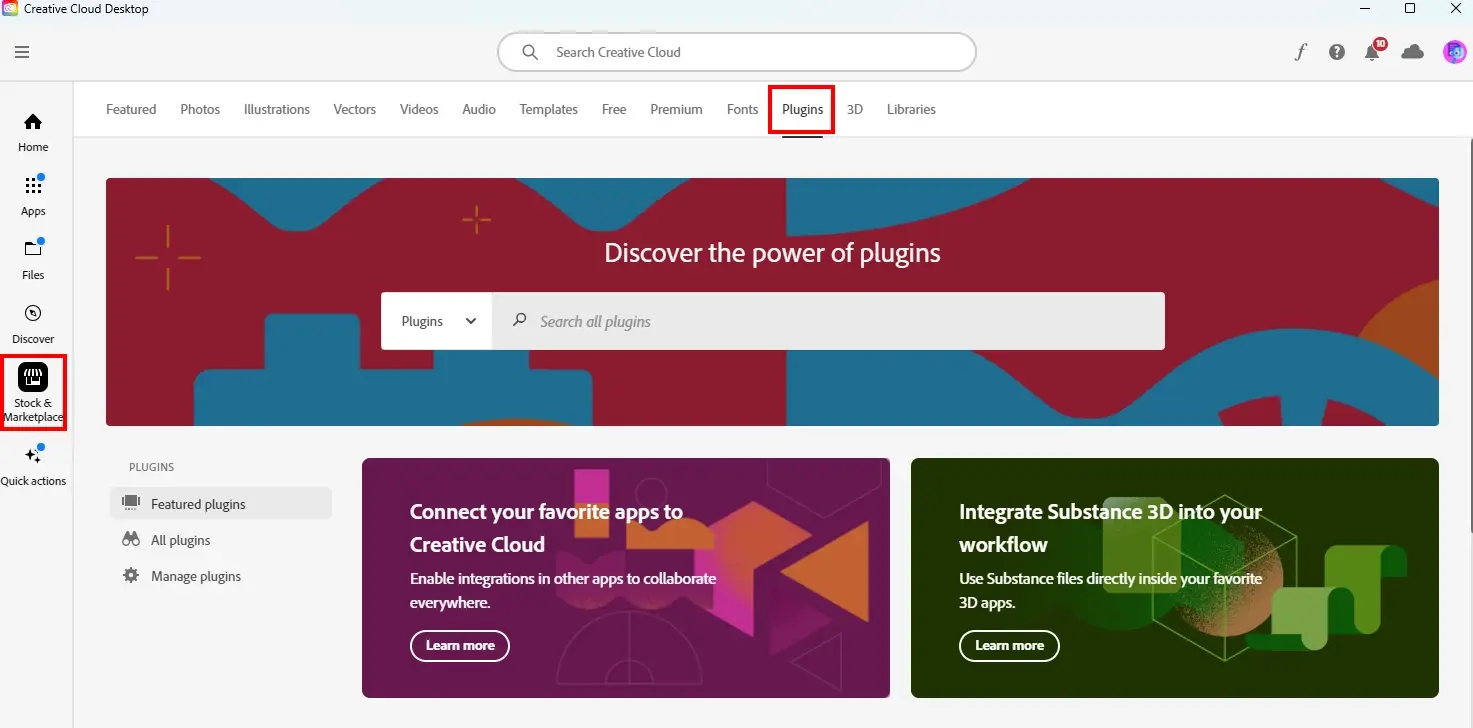
Step 1
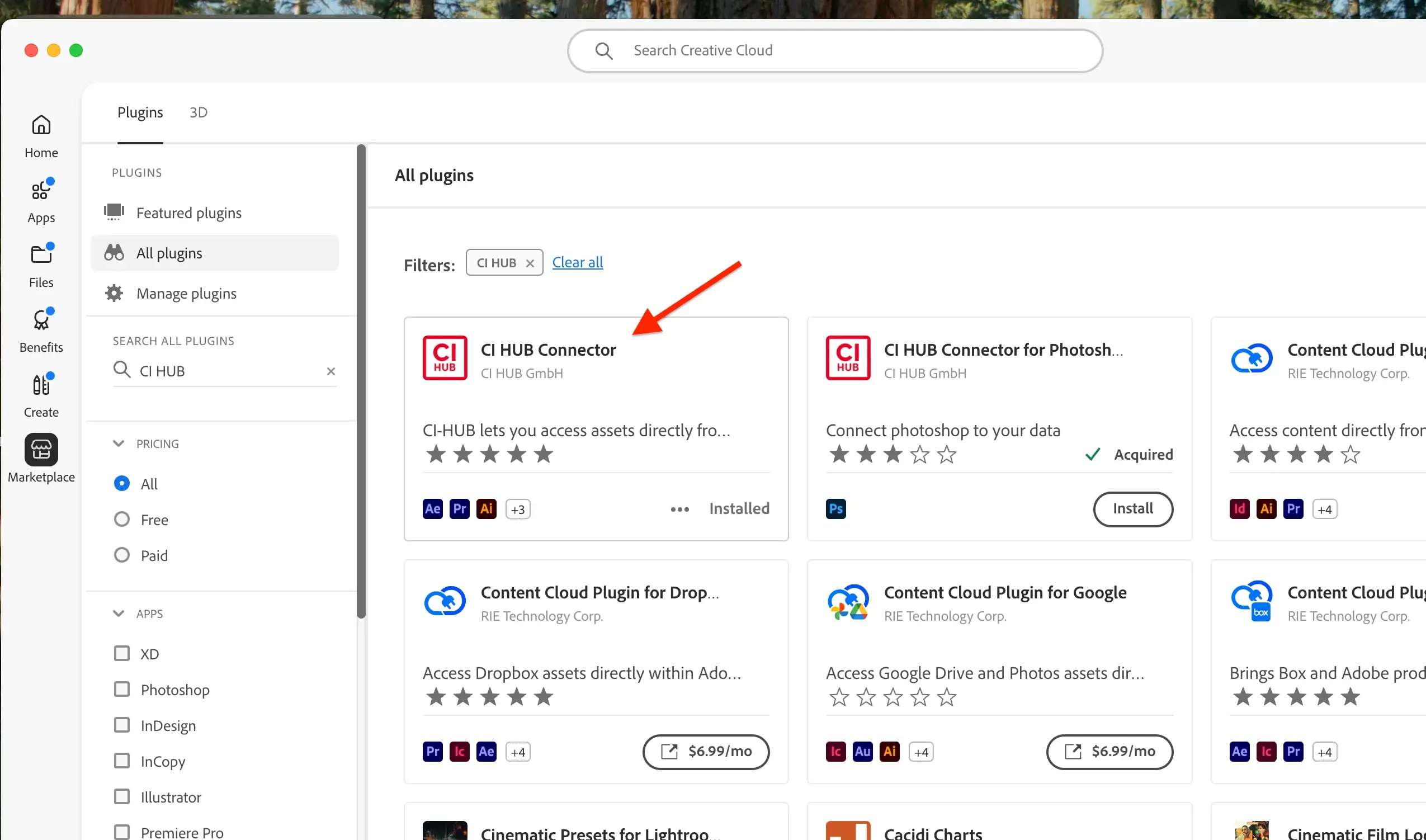
Open your Adobe Creative Cloud Application. On the left side menu, select Stock & Marketplace then click Plugins.
Step 2
Type CI HUB Connector in the search bar. Click Get to begin the download.
Step 3
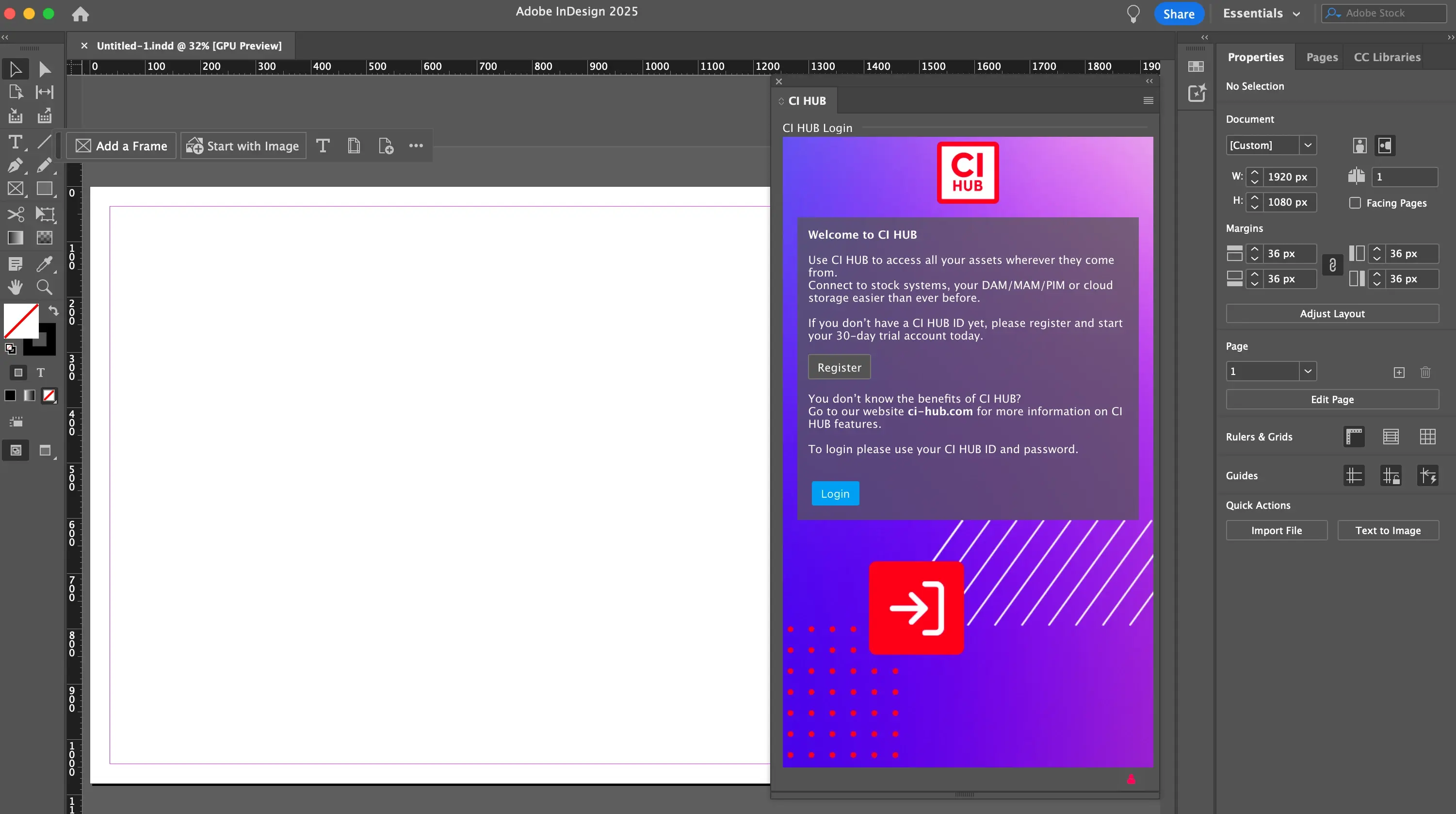
Once installed, open the Adobe application you want to
use and find the plugin/extension under Window ->
Extensions -> CI HUB.
use and find the plugin/extension under Window ->
Extensions -> CI HUB.
Step 4
Click Login once the CI HUB pop up appears and enter in
your CI HUB credentials to enable the connector.
Step 5
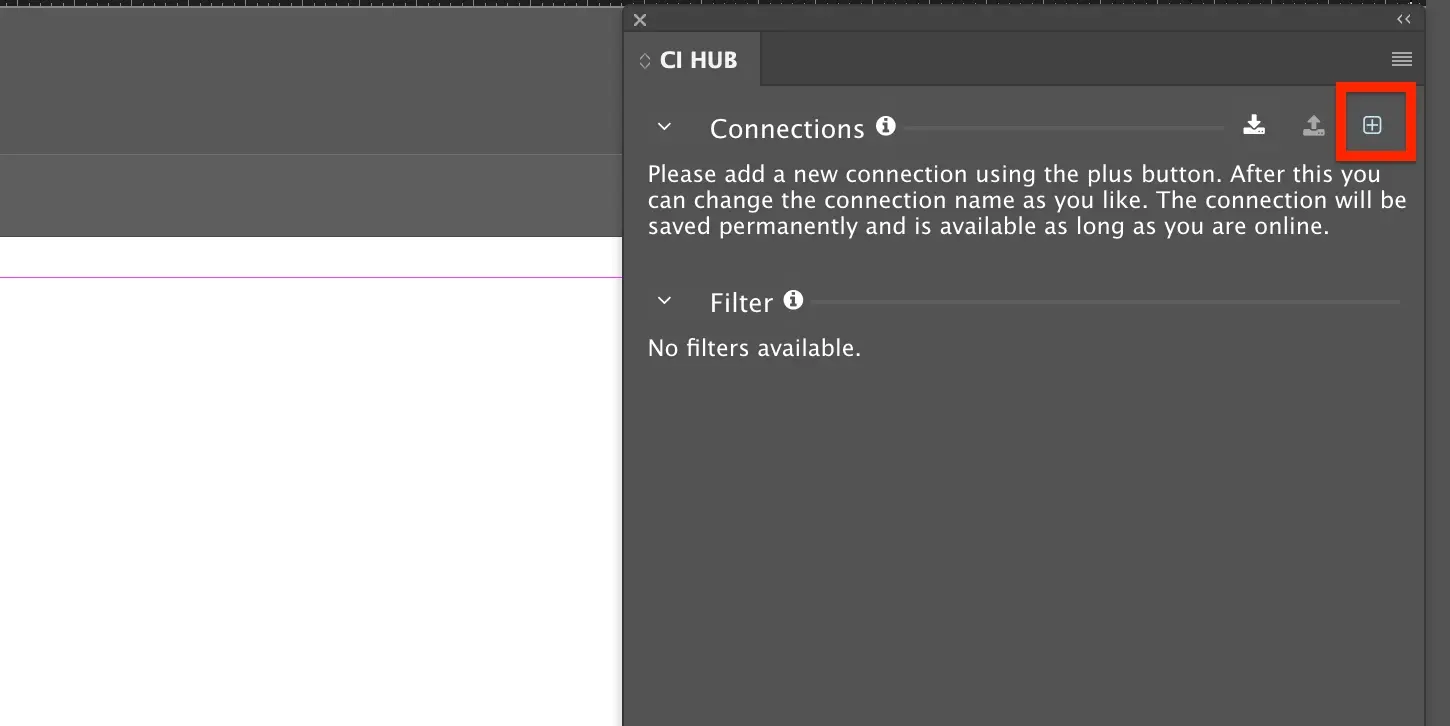
Once the CI HUB Connector is enabled, click the + symbol
next to connections. Search your connection and click on
the + button to add the connection.
next to connections. Search your connection and click on
the + button to add the connection.
Step 6
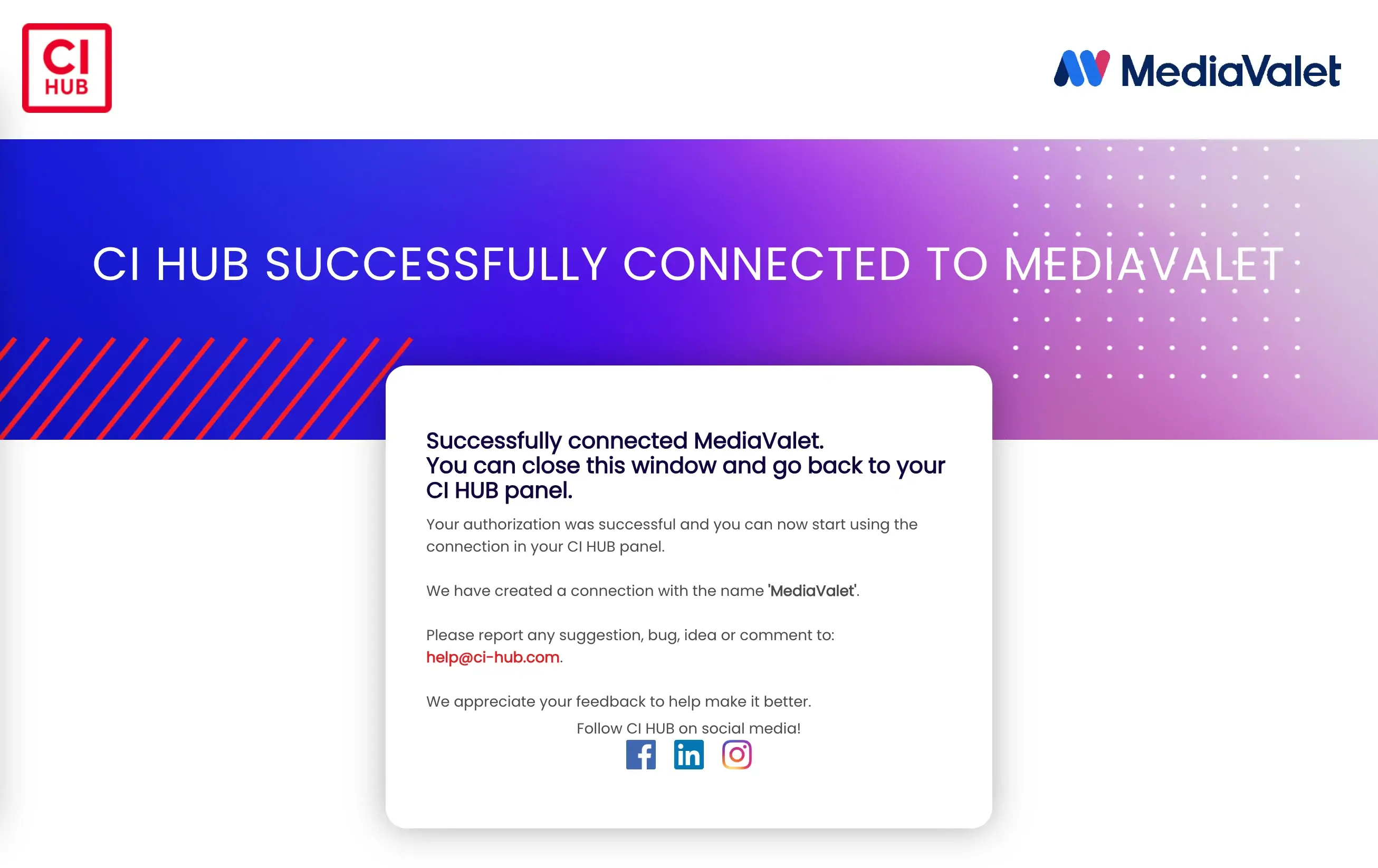
Once authenticated, you'll receive a pop up notification
letting you know that CI HUB has been successfully
connected to any connection.
letting you know that CI HUB has been successfully
connected to any connection.
×
Lorem ipsum
Video Introduction Headline
Lorem ipsum dolor sit amet, consectetur adipiscing elit, sed do eiusmod tempor incididunt ut labore et dolore magna aliqua. Ut enim ad minim veniam, quis nostrud exercitation ullamco laboris nisi ut aliquip ex ea.
FAQs
Do you have questions?
We have the answers
You can install the CI HUB Connector Professional through the plugins or extensions option available in Adobe InDesign. After installation, the CI HUB panel becomes available inside the application for asset access.
Once installed, the CI HUB panel can be opened from the plugins or extensions section within Adobe InDesign. From there, you can connect to your DAM and start working with assets.
You need access to a supported digital asset management system and valid login credentials. This ensures you can connect CI HUB to your DAM after installation.
Yes. After installation and connection, CI HUB allows you to search and access approved assets from your DAM while working on layouts such as brochures, catalogs, and magazines.
Once the panel is active and connected, you can search assets using keywords or metadata. You can preview and place assets directly into your InDesign layouts without downloading them manually.